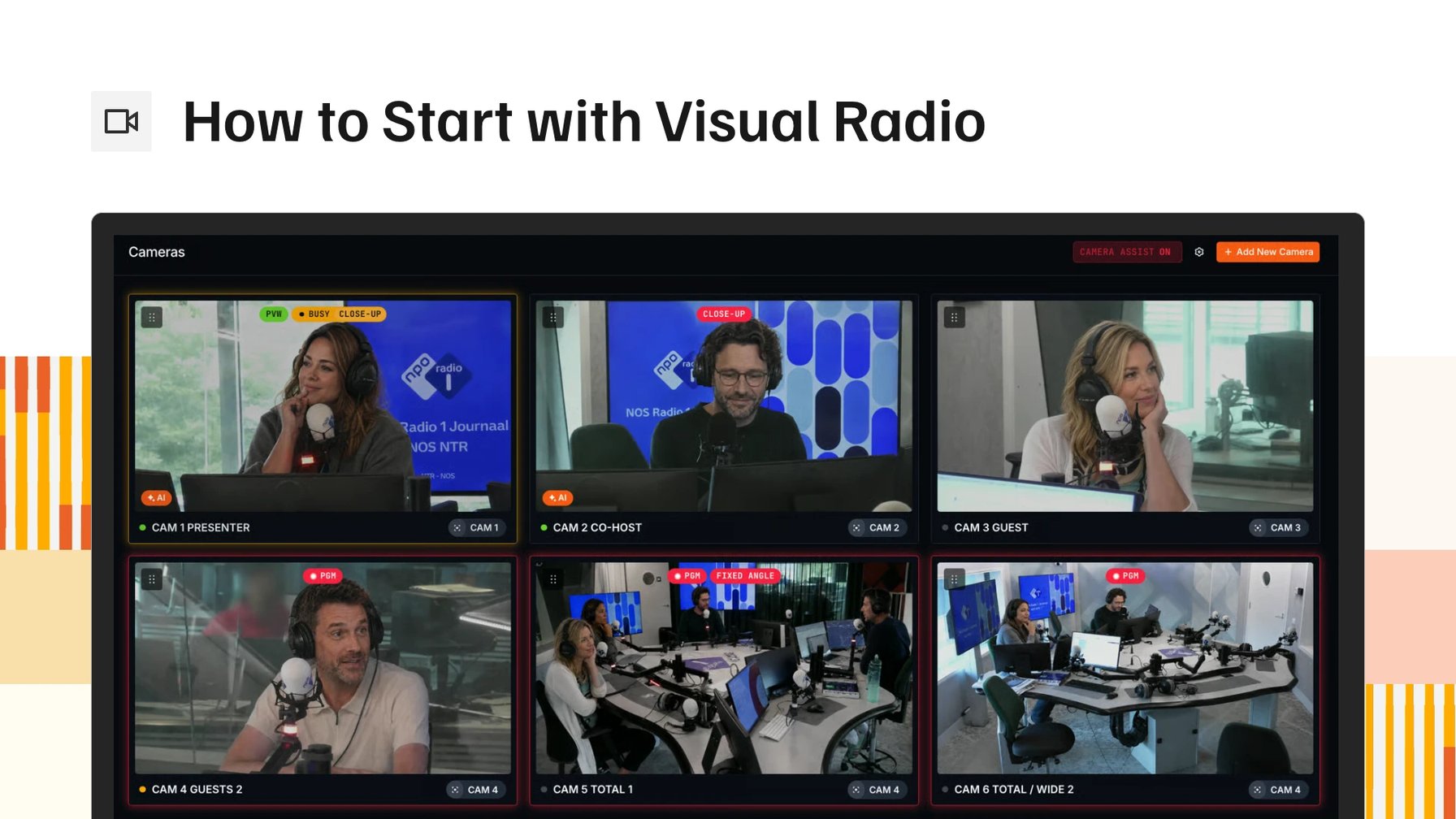
You want to start making clips for social media, or maybe you want your show to be seen as well as heard. You want to start doing visual radio, but you don't know where to begin. Here is a guide on where you start and what the first step is to make professional visual radio.
Visual radio is radio you can also watch: cameras in the studio, a picture that follows the conversation, and graphics that show what is playing. Starting takes two things. First the hardware, then a workflow that runs it. This guide follows the signal: cameras, microphones, switcher, computer, graphics, workflow and clips.
Cameras: PTZ, and which brand matters less than you think
Most studios start with PTZ cameras. A PTZ camera pans, tilts and zooms to stored presets, so one camera gives you several shots: a close up of the host, a two-shot, a wide of the studio. Control usually runs over the network, with VISCA over IP or NDI. Common brands are Marshall, Panasonic, Sony, PTZOptics and Canon. It doesn't really matter which Panasonic or Sony it is, it can be over VISCA over IP, whatever. You can actually start with all of them.
Many PTZ cameras have auto-tracking built in, where the camera follows a person around the room. VRA's AI framing, which is coming to Camera Assist, works differently. It holds a composition, like a close up, and only corrects a camera while that camera is off air. The picture on air never moves.
Fixed cameras work too. You lose the moving shots, and cutting between cameras works the same. More on that in automated camera switching for radio.
Microphones: one channel per mic
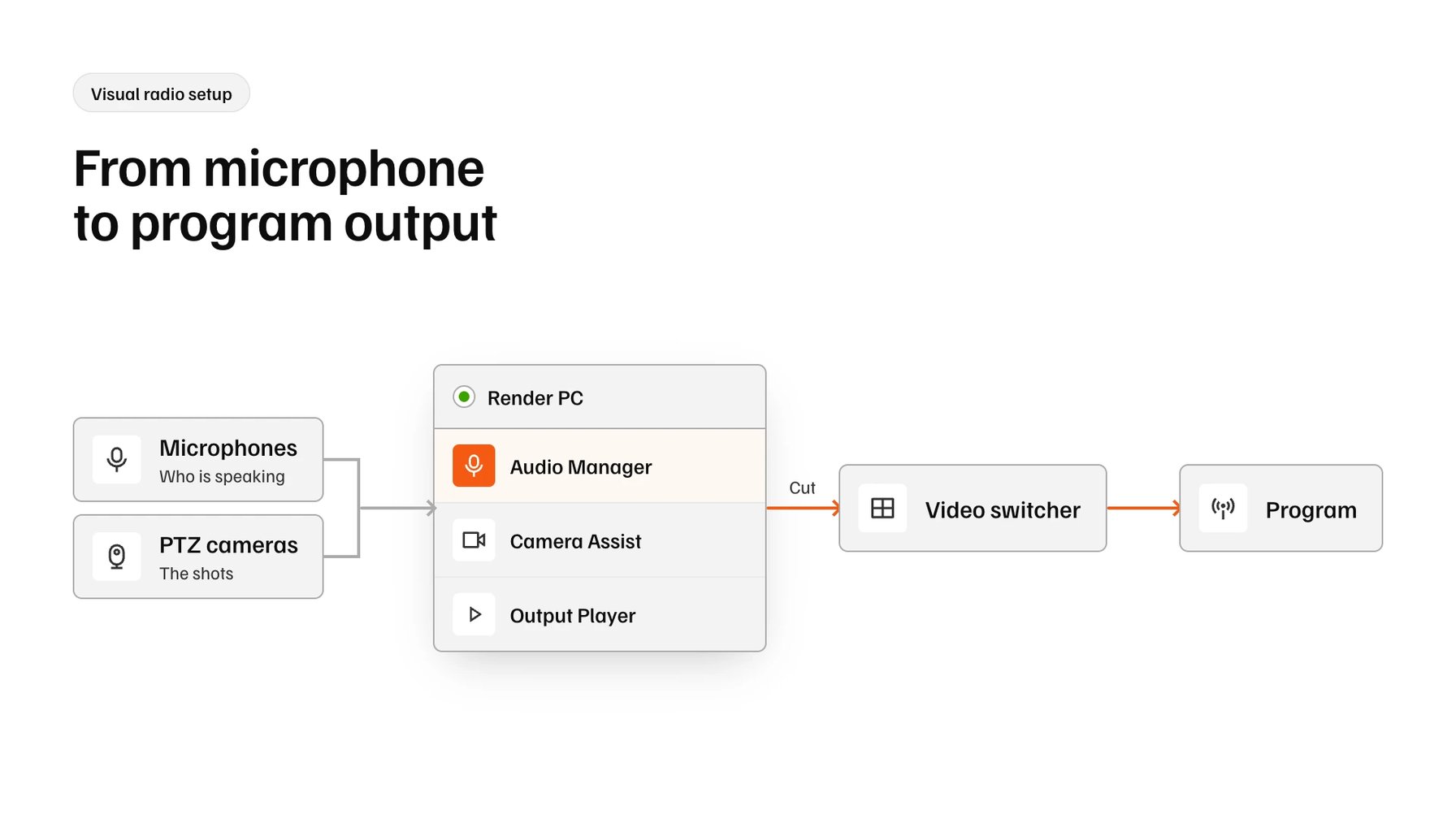
To switch cameras automatically, a system has to know which microphone is open. That means every mic needs its own channel, not one stereo mix of the whole studio. A channel is one microphone's signal on its own, kept apart from the others.
Those separate channels reach the computer in one of three ways. Many audio consoles can send each channel out on its own. An audio interface takes the mics on XLR and shows each one to the computer as its own input. Or the channels travel over the network as audio over IP, with Dante or AES67, if your console supports it.
The switcher: ATEM or vMix
The switcher takes the camera feeds and cuts between them. A Blackmagic ATEM is a hardware switcher: cameras plug into its HDMI or SDI inputs, depending on the model, so any camera with a matching output goes in. vMix is software on a Windows PC. Cameras come in as inputs, through a capture card or over NDI, and you cut on screen. OBS is a third option, free and open source.
From here you can start switching, and your visual radio is on air.
The computer: rendering video and graphics
Video and graphics have to be rendered somewhere, and that takes a PC that can handle it. With vMix or OBS, the switching PC also renders the titles, so one machine carries both jobs. With an ATEM, graphics come from a separate machine. It sends them over SDI as fill and key, through a Blackmagic DeckLink card for example, or over NDI.
The fully do-it-yourself route is FFmpeg, a free command-line tool that can lay images over video and encode the result. It needs a PC with enough power, and keeping audio and video in sync is on you.
With VRA, the Output Player renders your graphics to SDI or NDI. The documented minimum is an Intel i5 10th gen or AMD Ryzen 5 5000, 4 GB of RAM and an NVIDIA GTX 1660 or Quadro RTX A2000.
Graphics: lower thirds, tickers and now playing
Graphics are the overlays: a lower third with the host's name, a ticker bar, the song playing now. Your radio playout system, like OmniPlayer or mAirList, already knows what is playing. That data can drive the graphics.
Doing it yourself, you build titles in vMix or OBS and feed them that data. vMix titles can read from a data source such as an XML or CSV file. OBS text sources can read their text from a file.
With VRA, OmniPlayer and mAirList post now playing straight in, and it reaches your graphics as variables. You design the graphics themselves in the Visual Designer.
The workflow: who does the switching
You need the hardware, but then you also have to start working with a workflow. Someone or something has to cut cameras, play graphics and start recordings, for every hour you are on air.
By hand, an operator sits at the switcher, often with an Elgato Stream Deck running Bitfocus Companion, which turns its buttons into commands for the switcher and other software. That works well for a produced show, and it needs a person in the chair for every hour of it.
Automated, the cuts follow the open microphone and the graphics follow the playout. That is what VRA does.
Clips for social media
A channel that is on air all day still needs short clips for social media. A common setup records the program feed on a Blackmagic HyperDeck onto an SSD, then reaches the files over the network or from a NAS. You edit in DaVinci Resolve or Premiere Pro and add captions there before you post.
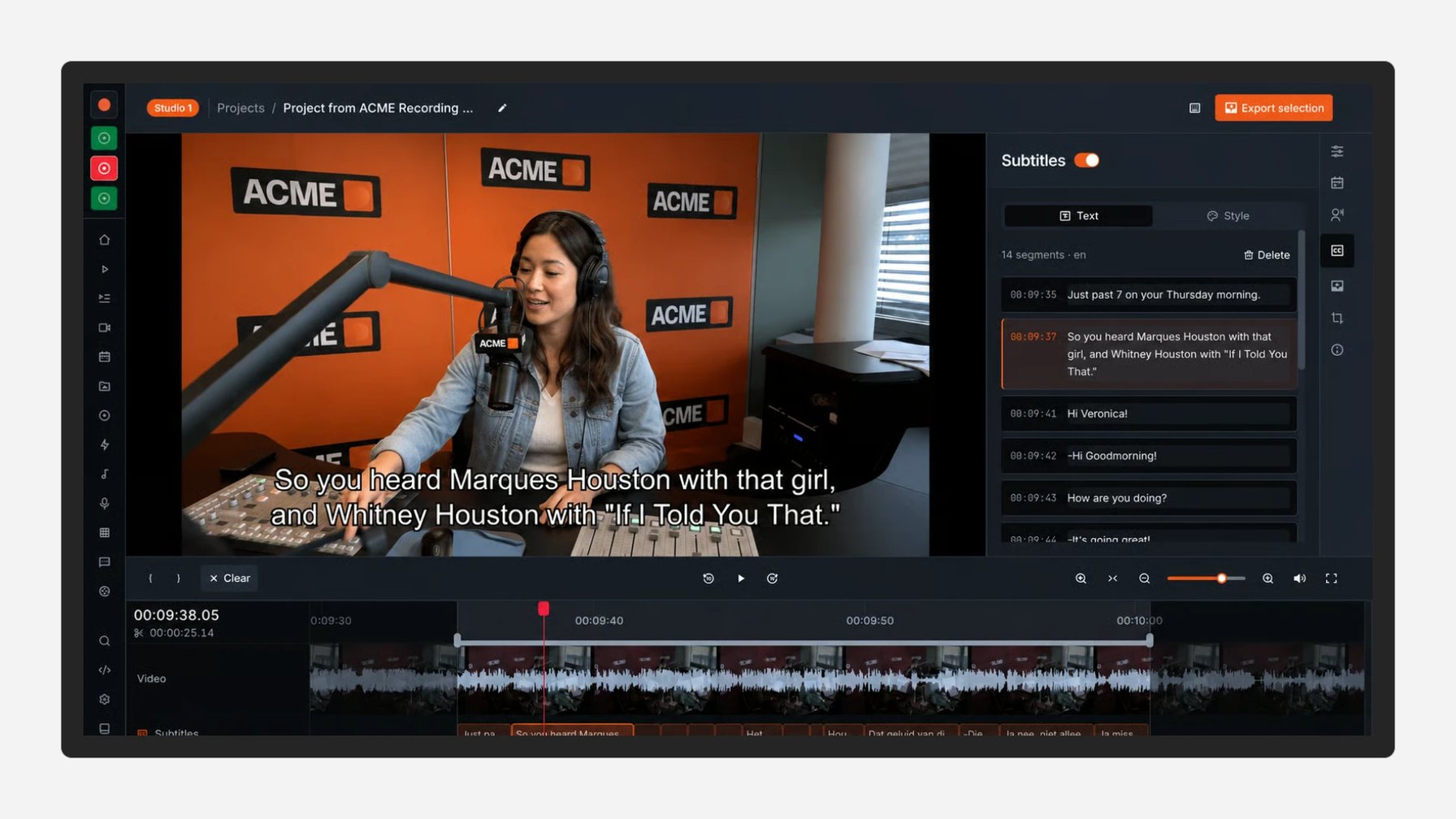
With VRA, Clips records off the HyperDeck, vMix or OBS, and you cut and download in the browser. Clips adds captions too. Posting stays with you: you download the file and publish it on your own channels.
Or start with all of it built in
Everything above is built into Visual Radio Assist: camera switching, graphics from playout data, output and clips, with AI framing on the way. You bring the cameras, the mics, a switcher and a PC that meets the specs.
If you have a lot of trouble, you can actually start very quickly with Visual Radio Assist and scale up very quickly. Then you actually only need the equipment, and then you are actually completely ready to start right away.
More from the blog
All posts
Product · 10 April 2025
Re-usable Visual Radio Graphics with Templates
Using a template from the template gallery gives you access to a designed broadcast graphic to power your Visual Radio stream.
1 min read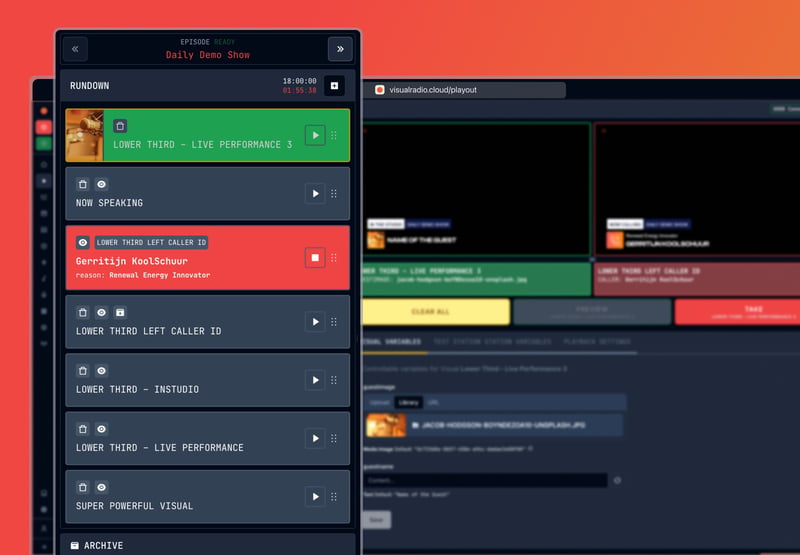
Product · 27 November 2024
Releasing 4.2: Show-based graphics rundowns
Version 4.2 is packed with new Visual Layers, a new live rundown based Playout and more Visual Radio automations.
4 min read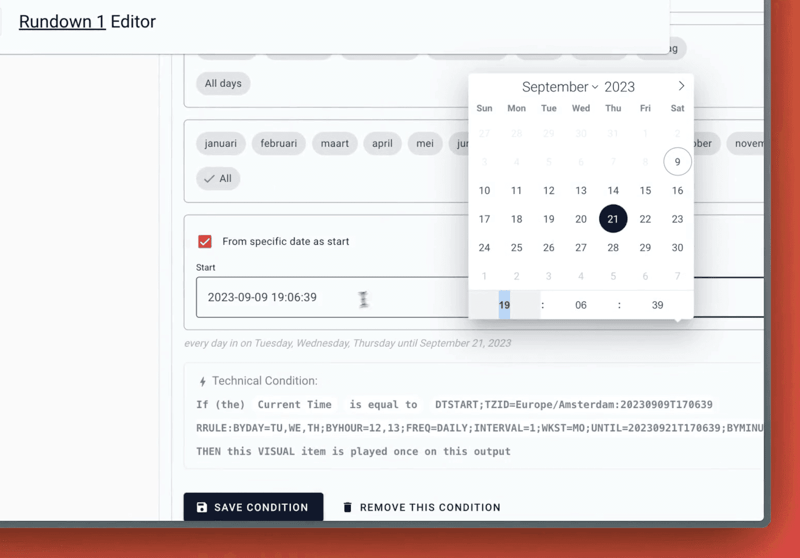
Product · 9 September 2023
Time Conditions with date scope
Read about the latest updates to the Server Core of Visual Radio Assist, including enhancements to time conditions for automations and a new generic AutomationLink for connecting radio automation data to the platform.
1 min read