
A question that keeps coming back on the vMix forums: "I want the 4th camera (showing a studio overview) to be switched to when no one is speaking." The setup behind it is common: video follows audio. Each presenter has a mic and each mic has a camera. vMix auto switches the camera to whoever's mic gets loud.
That works until people talk like people. A cough, a laugh or a quick "yes" from the co-host opens their mic for a moment, and vMix cuts to them. Half a second later the host is still talking and the picture cuts back. In a lively conversation the program output jumps back and forth every few seconds.
Silence has the opposite problem. When a song starts or both presenters stop to read the next item, no mic is loud, so nothing fires. The last speaker stays on screen, looking down at the desk.
A director in the gallery handles those moments differently. They hold the shot through a short interruption, give a real back-and-forth a two-shot, and go to the wide when nobody speaks. Visual Radio Assist (VRA) makes those calls for you, with automated camera switching for radio. It picks the shot from your mics and sends the cut to the vMix you already run. Nobody has to sit at the vision mixer. Below we set it up for a show with two presenters.
Set up vMix to auto switch cameras: two presenters, three inputs
Each presenter has their own mic channel, and each channel gets one audio trigger. A trigger listens to one channel, so two people on one mic can't be told apart. When VRA recognizes your audio driver, it offers to create the triggers for you.
vMix stays the switcher. VRA connects to it over the Web Controller and the TCP API (port 8088 by default), so switch both on in vMix first. Then add the vMix machine as a switcher in VRA Cloud. Its inputs show up as camera angles a trigger can point at.
The example uses three inputs:
- Host single
- Co-host single
- Wide of the studio
With three cameras, the wide is also the two-shot. If you build an input in vMix that frames both presenters, use that one for the two-shot instead.
Check your edition before you start. Every vMix edition connects, but camera-angle automation needs the 4K edition or above. VRA only picks the input: it sends no tally to vMix and does not steer PTZ cameras through it. Camera Assist controls and frames PTZ cameras directly.
Stop the cut on every interruption
Three settings on each presenter's trigger decide how nervous the picture looks.
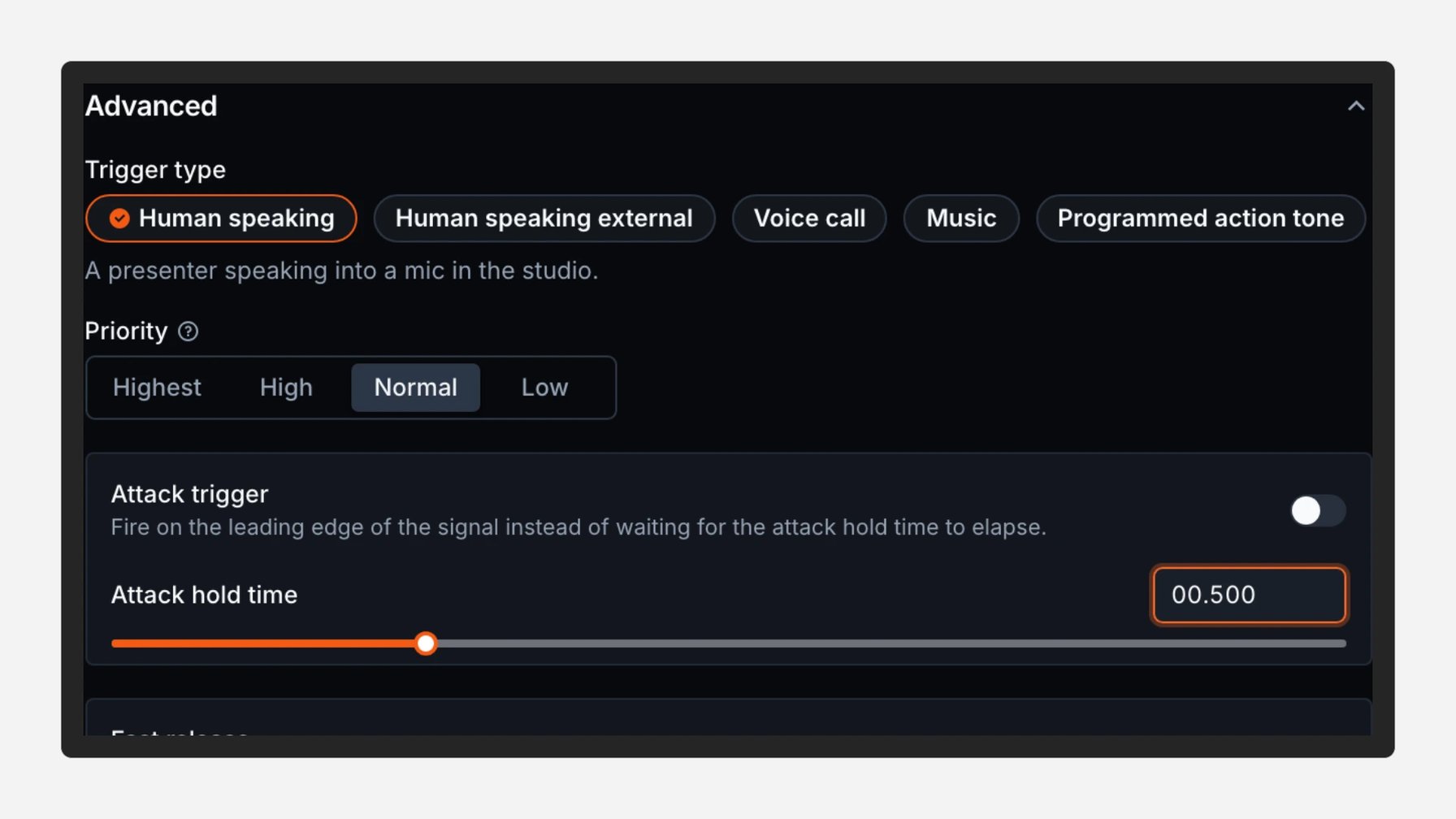
Attack hold is how long a mic has to stay open before its trigger fires, 500 ms by default. A short "yes" or a laugh is over before that, so the camera stays where it is. The trigger also scores the rhythm and pitch of speech, so a cough or a knock on the desk is less likely to count in the first place.
Priority decides who wins when both mics are open at once. Give the host the higher number, and the host keeps the shot when the co-host talks over them for a moment.
Talk time is how long a trigger waits in silence before it releases. It covers the breath between two sentences, so the shot doesn't drop when a presenter pauses to think. The studio has one talk time, and each trigger can override it.
Real conversation gets a two-shot
When the two presenters are really talking to each other, cutting between singles looks frantic. A trigger group combines the two mic triggers and has one shot of its own, the two-shot. It goes on air when both talk at once or keep answering each other. Give the group a higher priority than either presenter so it wins over its own members.
The Smart Director decides when that two-shot comes and goes. It only acts when the studio has trigger groups, so build the group first. Its defaults:
- It takes the two-shot after 3 turns back and forth within 4 seconds, and holds it for at least 2 seconds.
- It cuts back to a single when one presenter keeps talking for 2.5 seconds.
- It keeps a guard of 1.5 seconds, so it doesn't cut straight back to the two-shot it just left.
The guard matters when a conversation ends. One presenter starts a longer answer and the other adds a word, but the picture stays on the single.
Nobody speaks: vMix goes back to the wide shot
The studio fallback fires when every presenter trigger has gone quiet, after a delay you set. Point it at the wide and the overview camera goes on air whenever nobody talks, through songs and jingles too. A breath between sentences never gets that far, because each trigger first waits out its talk time.
The fallback can run several commands in order, with a wait between them. Cut to the wide, for example, and bring up a now playing bar a few seconds later.
The recording: each cut explained, with starting values
The clip runs the whole setup on one short show, with the program output on the left and VRA on the right.
In the recording:
- The host opens. Their trigger fires after the attack hold, and vMix takes the host single.
- The co-host says "yes" in the middle of a sentence. Their mic is open for less than the attack hold. The host also has the higher priority, so the shot stays.
- The two start trading lines. After three turns within four seconds, the two-shot goes on air and stays.
- The co-host gives a longer answer. After 2.5 seconds of only their voice, vMix cuts to the co-host single.
- Both stop and the music starts. Talk time runs out, the fallback delay passes, and the wide goes on air.
To copy this setup, start from the defaults: a 500 ms attack hold and the three Smart Director values. Rank the host above the co-host, and the group above both. Talk time and the fallback delay depend on how your presenters talk, so set them by ear during the first show.
If it still feels busy, tune in this order. Short sounds that still cut call for a longer attack hold. Next is talk time, when the shot drops between sentences. Last comes the Smart Director: a longer minimum hold or a longer guard when the two-shot comes and goes too fast.
To see this running on your own vMix and mics, book a demo and bring your input list. If part of your chain isn't on our integrations list, we build that connection for you.
More from the blog
All posts
Company · 7 February 2024
Low-Latency Cloud Playout
Why low-latency live playout from the web is the future of broadcast
2 min read
Product · 9 February 2024
Visual Radio Live Graphics Playout
Launching the first ever Visual Radio Playout, build to live control your graphics onair!
4 min read
Product · 18 March 2025
New Media Management in Visual Radio: The Media Hub
Managing media in a multi platform situation for Visual Radio broadcast on web and TV platforms can be a challenge with visual content living in various locations. With the new Media Hub, Visual Radio Assist now offers a single place for media management in the Cloud. Whether you're a radio DJ, producer, or technical manager, you can upload, organize, and access all your media remotely—making it easier than ever to prepare for live broadcasts.
2 min read